Basic Usage
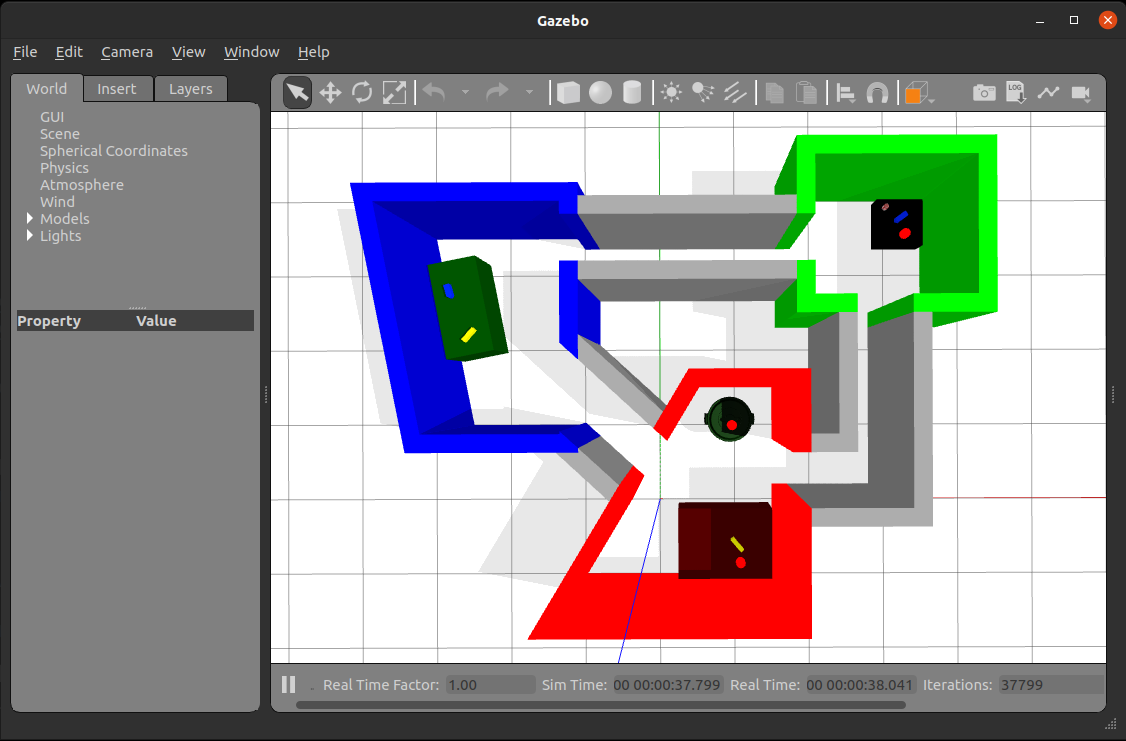
To get started with pyrobosim, you can run the following examples.
Standalone
First, go to the pyrobosim subfolder under the repository root.
cd /path/to/pyrobosim/pyrobosim
Then, run the example.
python3 examples/demo.py
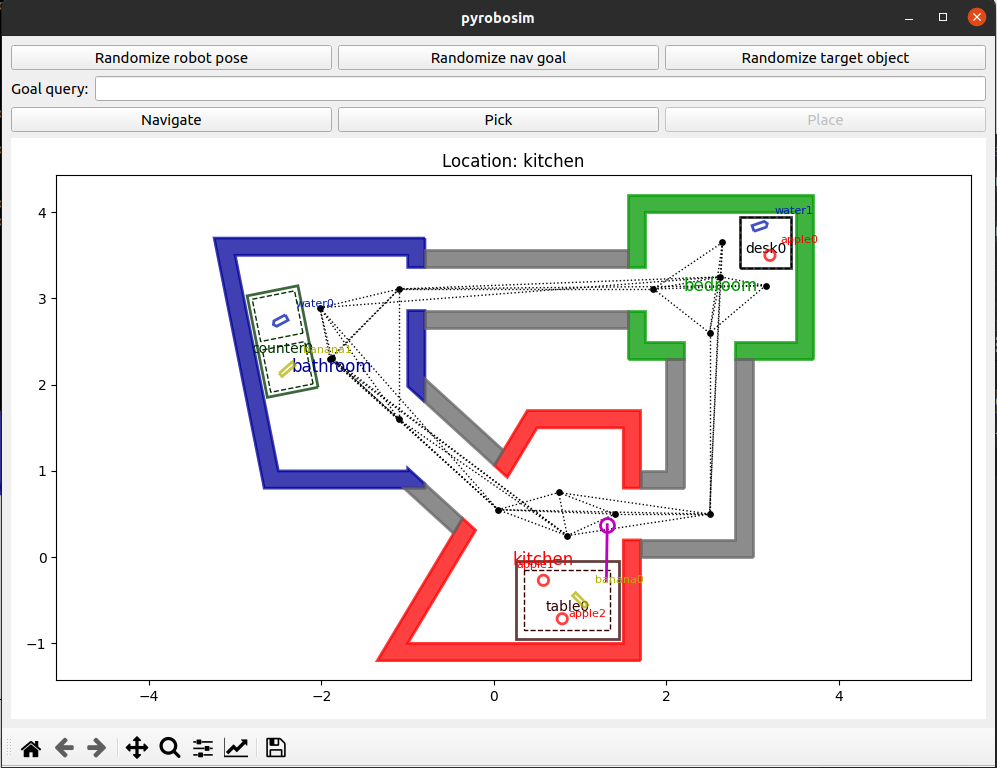
You can now interact with the GUI through the buttons and text boxes. For example, enter “bedroom desk” in the Goal query text box and then click the Navigate button. Once at the destination, click Pick.
With ROS 2
First, build and setup your ROS 2 workspace (or use one of our provided Docker containers).
cd /path/to/ros_workspace
colcon build
. install/local_setup.bash
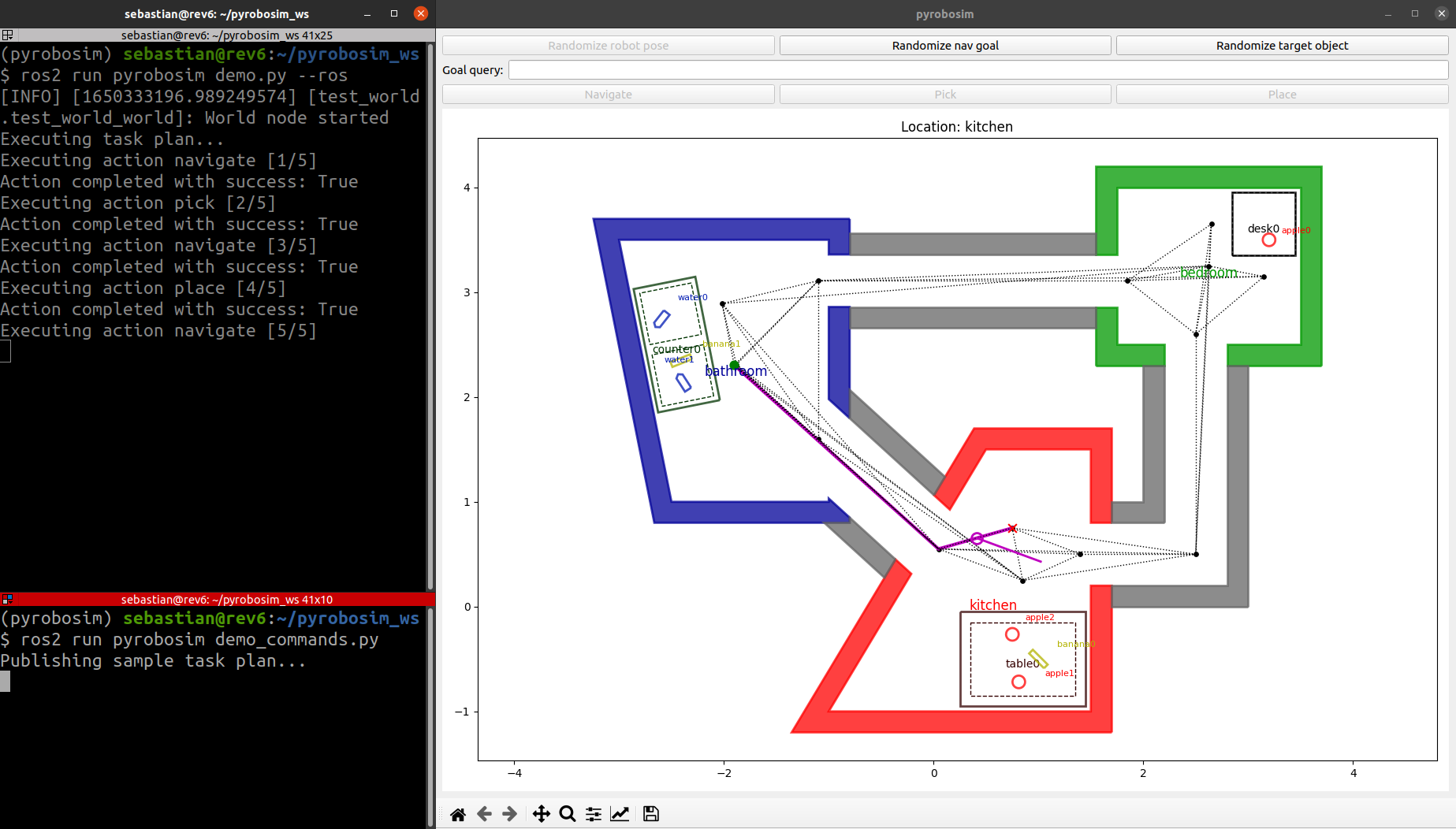
You can run a ROS 2 enabled demo and interact with the GUI:
ros2 run pyrobosim_ros demo.py
In a separate Terminal, you can send an action goal with a task plan or a single action:
ros2 run pyrobosim_ros demo_commands.py --ros-args -p mode:=action
ros2 run pyrobosim_ros demo_commands.py --ros-args -p mode:=plan
Or, you can run both of these nodes together using a provided launch file:
ros2 launch pyrobosim_ros demo_commands.launch.py mode:=plan
ros2 launch pyrobosim_ros demo_commands.launch.py mode:=action
The first command will start a world as a ROS 2 node, and the second one will execute a plan (or set of actions) to the node.
Creating Worlds
Worlds can be created either with the pyrobosim API, or loaded from a YAML file using the pyrobosim.core.yaml_utils.WorldYamlLoader utility.
By default, demo.py creates a world using the API, but you can alternatively try a demo YAML file using the --world-file argument.
For example:
# Standalone
python3 examples/demo.py --world-file test_world.yaml

# ROS 2
ros2 launch pyrobosim_ros demo.launch.py world_file:=test_world.yaml
Refer to the YAML Schemas documentation for more information.
Exporting Worlds to Gazebo
To export worlds to Gazebo, there is a pyrobosim.core.gazebo.WorldGazeboExporter utility.
You can try this with the following commands.
# Standalone
python3 examples/demo_world_save.py

# ROS 2
ros2 run pyrobosim_ros demo_world_save.py
Then, follow the steps displayed on the console to see the generated world.
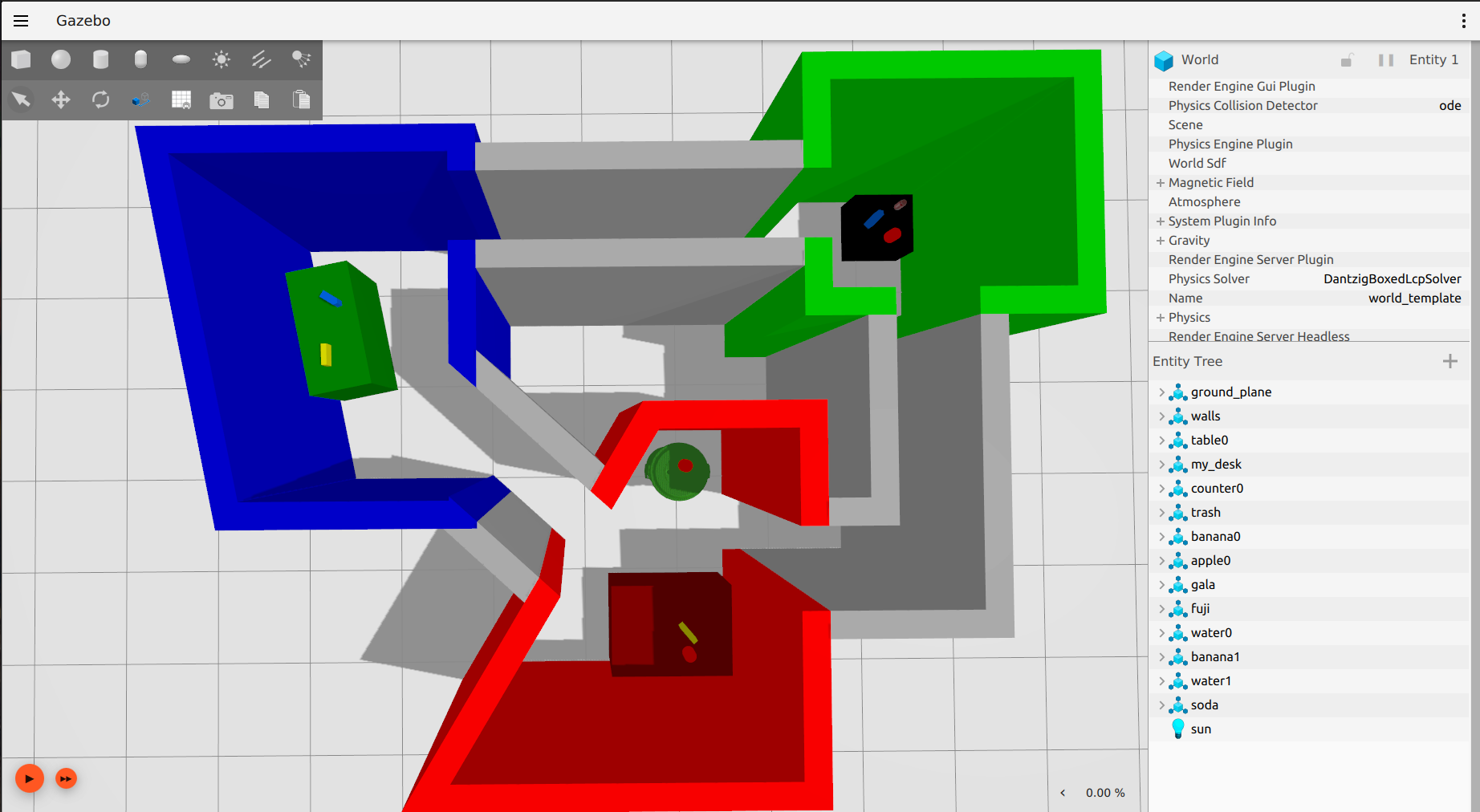
If you add the --classic flag to this demo, you can similarly export to Gazebo Classic.
# Standalone
python3 examples/demo_world_save.py --classic

# ROS 2
ros2 run pyrobosim_ros demo_world_save.py --classic